






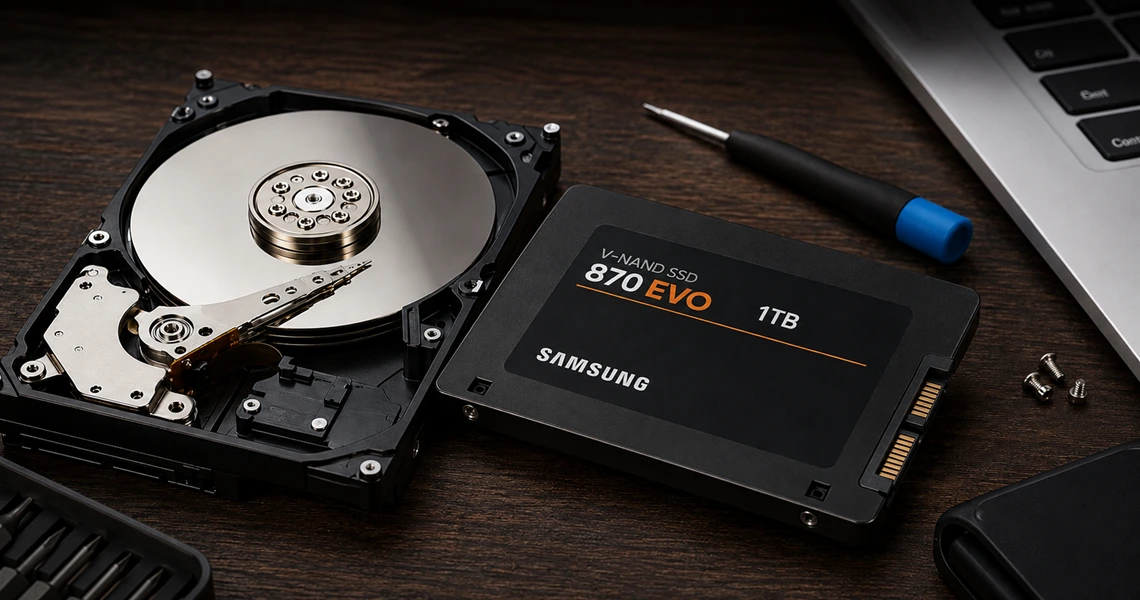
HDD and SSD Lifespan: How to extend drive lifespan and prevent data loss
HDD and SSD Lifespan
How to extend drive lifespan and prevent data loss
Why is it important to monitor drive health?
HDDs and SSDs store the operating system, applications, documents, photographs and other important data. However, every storage drive has a limited service life and may eventually become slower or begin reporting errors.
Regular drive health checks, data backups and preventive computer maintenance can help detect potential problems early and reduce the risk of data loss.
Main Types of HDDs and SSDs
HDD Types
- Desktop HDD — home and office computers
- Performance HDD — gaming PCs and workstations
- NAS HDD — network storage and backups
- Enterprise HDD — servers and data centres
SSD Types
- SATA SSD — upgrading PCs and laptops
- M.2 SATA — compact SSD without cables
- M.2 NVMe — high-speed storage using PCIe
- Enterprise SSD — servers and databases
HDD or SSD: Which One Should You Choose?
HDD Advantages
- Lower cost per gigabyte
- Large storage capacities
- Suitable for archives and backups
- Commonly used in NAS and surveillance systems
HDDs are a practical choice for storing large amounts of data, maintaining archives and building file storage systems.
SSD Advantages
- High loading and transfer speeds
- Silent operation
- Lower power consumption
- Better resistance to shock and vibration
SSDs are recommended for Windows, professional applications, gaming systems, video editing and modern laptops.
How Can You Check HDD or SSD Health?
Modern storage drives support S.M.A.R.T. technology, which records information about operating temperature, power-on hours, errors, damaged sectors and drive wear.
Software for Checking HDD and SSD Health
CrystalDiskInfo
Free software for viewing SMART information, drive temperature and overall storage health.
Hard Disk Sentinel
Displays drive health percentage, performance, detected errors and an estimated remaining lifespan.
HD Tune
Suitable for performance testing, surface scanning and detecting possible HDD errors.
Manufacturer Utilities
Samsung Magician, Kingston SSD Manager, WD Dashboard, Crucial Storage Executive and Seagate SeaTools.
How Can You Extend Drive Lifespan?
Monitor Temperature
Prevent the computer case and NVMe SSD from overheating. Make sure that fans and ventilation channels are not blocked by dust.
Keep Free Space Available
Keeping approximately 15–20% of an SSD free can support stable performance and improve write distribution.
Use a Reliable Power Supply
An unstable power supply and sudden power interruptions can cause drive errors, file corruption and possible data loss.
Create Regular Backups
Even a healthy drive can fail unexpectedly. Important data should always be stored in at least two separate locations.
Why Is Preventive Computer Cleaning Important?
Dust restricts airflow and increases the operating temperature of the processor, graphics card, motherboard and storage drives. When an NVMe SSD overheats, it may reduce its performance, while prolonged exposure to high temperatures can accelerate the ageing of electronic components.
Preventive cleaning, cooling system inspection and SMART diagnostics can help identify overheating, storage errors and other hardware problems before a serious failure occurs.
Do You Need an HDD or SSD Health Check?
RealTech MMC provides storage diagnostics, SMART checks, temperature monitoring, cooling system cleaning and comprehensive computer maintenance services in Baku.
Learn More About Computer MaintenancePopular HDD and SSD Brands and Models
HDD
- WD Blue
- WD Black
- WD Red Plus
- WD Gold
- Seagate BarraCuda
- Seagate IronWolf
- Seagate Exos
- Toshiba P300
- Toshiba X300
- Toshiba MG Series
SSD
- Samsung 990 PRO
- Samsung 870 EVO
- WD Black SN850X
- WD Blue SA510
- Kingston KC3000
- Kingston FURY Renegade
- Crucial T705
- Crucial MX500
- Seagate FireCuda 530
- Solidigm P44 Pro
When selecting a storage drive, consider compatibility, interface, capacity, warranty, write endurance and the expected workload. This list is not an absolute ranking and may change as new models are released.
Conclusion
HDDs are suitable for storing large amounts of data, while SSDs provide faster system performance and responsiveness. However, both types of drives require temperature monitoring, SMART checks and regular data backups.
Timely diagnostics and preventive computer maintenance are considerably less expensive than attempting to recover data after a complete drive failure.
Check Your HDD and SSD Health Before Problems Occur
Drive Diagnostics · SMART Checks · Temperature Monitoring · Desktop and Laptop Cleaning
View the Service and Place an Order